Version 6 of the Bundle-Maker offers improved functionality to help you create a country schedule for a First-tier Tribunal bundle.
This help guide covers:
Creating an extract from any website for your country schedule
Inserting a 'Dispute issue' heading
Re-ordering the content of a country schedule
Creating and formatting a country schedule
Creating an extract from any website for your country schedule
Make sure you have downloaded the latest version of the Bundle-Maker.
Click Insert Web Extract on the Bundle-Maker ribbon in Word to open the Web Extract Maker.
You will be prompted to log in to your EIN account when you first use the Web Extract Maker.
To create an extract:
- Copy the extract from a webpage and paste into the extract editor (you can paste one extract or multiple extracts from the webpage into the extract editor).
- Click the Fetch Details button
- The details of the extract (publisher, title, date and URL) will be automatically fetched and added to the text boxes.
- Check to make sure the details are correct.
- Click to Insert into Word or Copy.
As the Web Extract Maker is designed to work with any website, it might not always get the correct details – in testing, we have found it works very well with most webpages. It also works perfectly with country reports on EIN, producing the same results as the EIN website's Citation tool.
If any details are not correct, you can easily edit the relevant text box.
Because so many websites now block bots due to AI scraping, the Web Extract Maker utilises a local browser on your PC to fetch details. However, some websites will still challenge a local browser to prove you are human. If a website uses a challenge (e.g., Cloudflare) to prevent bots, the Web Extract Maker will prompt you to open an interactive browser window. Click Yes to open the window – you normally then just wait for 1 or 2 seconds while the Web Extract Maker completes the challenge. The window will then close automatically.
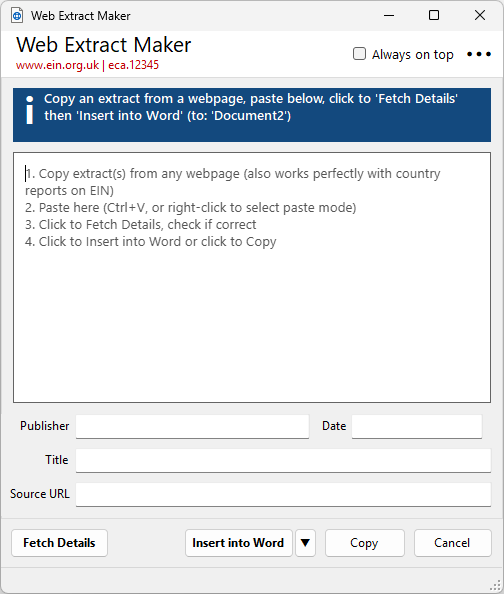
The Always on top checkbox on the top right of the Web Extract Maker keeps it as the topmost app in Windows until you uncheck the box. This can be useful if you are copying extracts from multiple webpages - it saves the need to keep switching between your browser and the Web Extract Maker app.
Note also that if the Web Extract Maker is open but is not the active window, clicking Insert Web Extract on the Bundle-Make ribbon in Word will bring the Web Extract Maker into focus and make it the active window.
Inserting a 'Dispute issue' heading
Disputed issue headings can be used to group your country schedule extracts under the relevant issues.
Click Dispute Issue on the Bundle-Maker ribbon in Word. Type a title for your issue (don't add 'Disputed issue' or 'Issue' - this will be added automatically). You can choose to insert at your selection point or before or after the current extract.
Add the relevant extracts beneath the relevant disputed issue headings.
See below for re-ordering and re-arranging the extracts in a country schedule.
Re-ordering the content of a country schedule
You can re-order your country schedule using Word's Outline view.
Disputed issue headings use Word's Heading 2/Outline level 2 style.
From version 6.0.3 of the Bundle-Maker, released 07 September 2026, 'Extract from:' headers created by the Web Extract Maker uses Word's Outline level 3. From 07 September 2026, the EIN website's Citation tool also uses Word's outline level 3 for its 'Extract from:' headers. This makes it easier to re-order the individual extracts in your country schedule.
The List and Re-Order command on the Bundle-Maker ribbon lets you quickly switch to the correct outline level in Word - select Country Schedule (Level 2) if you only want to re-order the schedule via the parent 'Disputed issue' headings; select Country Schedule (Level 3) if you also want to re-order individual extracts within your schedule.
Drag and drop or use Word's Outline Tools to re-order the items within your country schedule.
Creating and formatting a country schedule
Click Create/Format on the Bundle-Maker ribbon.
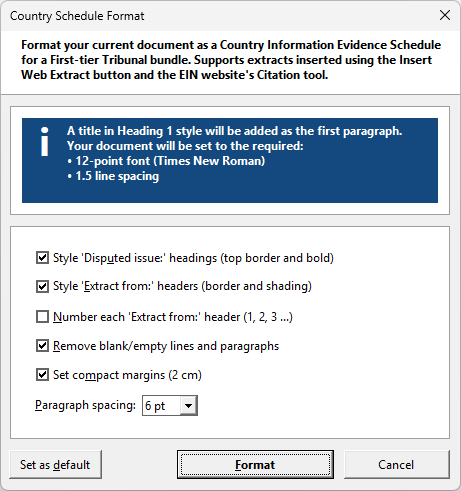
Change any of the various options, as required, and click the Format button.
The schedule will be set to 12-point font, 1.5 line spacing.
Empty lines and paragraphs will be remove by default to keep the schedule compact.
'Disputed issue' headings and 'Extract from' headers will be styled to make the country schedule easier to read, but you can untick the style options if you prefer them unstyled.
The option to Number each 'Extract from:' header is not select by default - you may find selecting this option also make your country schedule easier to read, allowing easier reference to each extract. You can click the Set as default button to save your preferred options.
If you need to edit a country schedule, click Remove Formatting on the Bundle-Maker ribbon. You can then edit your schedule before creating it again.