This guide provides a basic overview of searching on the EIN website.
It covers:
Accessing the search
Entering a search query
Sorting results
The 'Relevance bias' function
Advanced search options
Filtering search results
Accessing the search
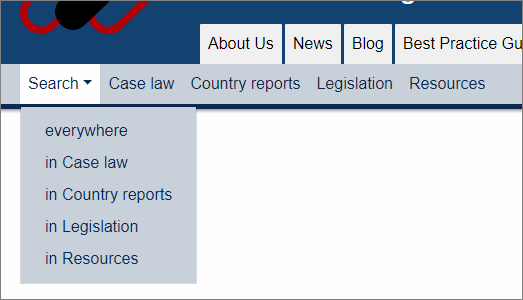
The 'Search' menu is prominently displayed on the left of the 'Members' menu. Use the dropdown 'Search' menu to select where you want to search. Click to expand and then select which part of the EIN you want to search. Click 'everywhere' to search the entire EIN website or select the individual database you wish to search: Case law, Country reports, Legislation or Resources.
Entering a search query
Enter the terms you are searching for and click 'Search'. EIN uses an advanced, highly intelligent search engine and we are confident that most users will find it offers impressive results for most search queries. Put simply, the search should be no more challenging than a familiar Google search.
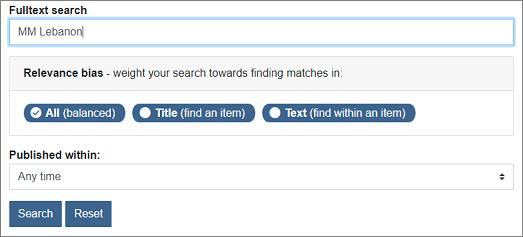
By default, the search will take into account all of the words you are searching for, using its intelligence to provide you with relevant results. For one to five word search queries, the search will assume it must find all of the words. For six or more word search queries, the search will operate on the principle that 15% or your search query can be skipped (ensuring you are less likely to receive no results).
Advanced operators
To find a phrase, wrap it in quotation marks.
Example: "immigration rules" will find the phrase 'immigration rules'
The search supports +, -. AND, OR and NOT as operators to build more complex searches. + tells the search that a word must be found. You can also use AND. You can tell the search that a word is to be excluded by putting a - before it or by using the NOT operator.
Example: Iran +Iraq human rights +Kurds protests will tell the search that 'Iraq' and 'Kurds' must be found (we may need + if searching for six or more words, it is not needed if searching for five words and under).
Example: Iraq NOT Kurds will tell the search that 'Kurds' must not be found.
You can group clauses by using parentheses to form sub-queries.
Example: (Taliban OR Taleban) AND (Afghanistan NOT Pakistan) has two separate clauses.
You can tell the search that a word is more important by putting a ^ character followed by a numeric 'boost' value after the word.
Example: Iraq Kurds peshmerga^20 will tell the search that 'peshmerga' should be boosted by a factor of 20.
You can perform a proximity search to find words close together to each other. Wrap the words in quotation marks and add the ~ tilde character followed by the proximity required directly after the closing quotation mark.
Example: "guidance sponsor"~10 will tell the search that you want to find these words within 10 words of each other.
You can use wildcards to represent one or more characters. ? represents a single character. * represents multiple characters.
Example: Depor* will find 'deport', 'deportation', 'deported', etc.
Please read the 'Search syntax guide' available here if you need more detail on syntax and operators.
Sorting results
Search results can be sorted by relevancy or by date, allowing you to select either the most relevant or the most recent results.
You can select the sort options in the 'Sort results by' block, which is near the top on the right-hand side of any search page.
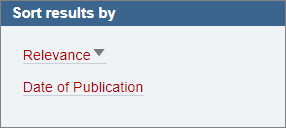
By default, results will be sorted by relevance. In addition to sorting by date, note that you can use the prominent Published within: function to only search within recently published items whilst still being able to sort by relevance.
The 'Relevance bias' function
When you are searching on EIN, you will often be attempting one of two actions: either trying to find an individual item (such as an individual case) or else trying to find relevant information on a certain subject. The Relevance bias function offers a very easy to use way to help you bias your search towards each of those actions (by favouring matches in the title or the text). It gives you some user-friendly fine tuning of your search results without the need to use the advanced search options.

If you want to find a specific item on EIN, such as finding a specific case by searching for the appellant name or the appeal number, you will find it helpful to select the Title bias option. This will increase the chances of the item you are searching for appearing at or near the top of your search results (when the results are sorted by relevance).
By contrast, the Text option will weight your search towards finding matches with the text of an item. This could be useful, for example, if you want to search for cases that cite another case. The Text option is also particularly helpful to avoid the title overly influencing your results.
The default All (balanced) option biases your search somewhere between the Title and Text options. It should be provide a sensible balance for most searches.
Advanced search options
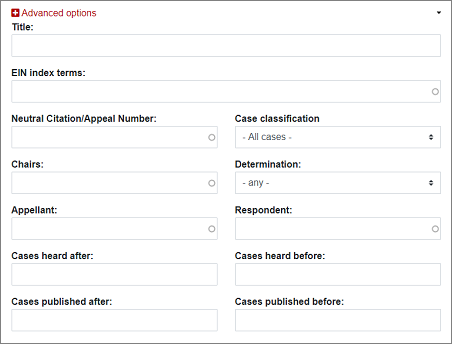
If needed, the advanced options will allow you to be more precise about what you are searching. Simply click '+ Advanced options' to reveal.
The advanced options available will vary depending on which part of EIN you are searching.
The case law search, for example, offers advanced options that include searching just the title field, just the appellant, just the NCN/appeal number, or just the chairs.
For country reports, the advanced options include letting you search by title or by organisation or by report type.
You can read the guide about using the advanced search options here.
Filtering search results
You can use the search filters to refine and narrow down your results.
Click on a filter option to select it (clicking again on a selected filter will remove it). You can select multiple filters.
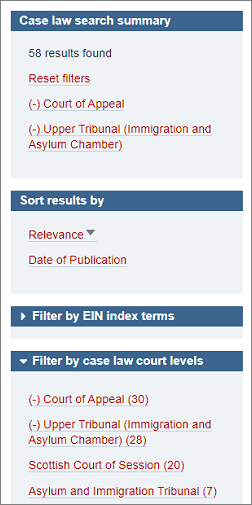
A guide with more details on filtering search results is available here.
Feedback
Please always feel free to e-mail EIN at support@ein.org.uk if you have any questions or suggestions about the search. Your feedback is valuable in helping to improve EIN.