The document bundles you create on EIN can be turned into fully paginated and indexed Microsoft Word documents, complete with a Tribunal format front page. The process is fully automated and very quick - saving you hours of work! You also have the advantage of working in the familiar environment of Microsoft Word to create your bundle, so there's no clunky new software to learn.
This page covers the following:
Downloading the Microsoft Word Bundle-Maker add-in
Creating a bundle in Microsoft Word
Options for controlling the formatting when creating a bundle
Downloading the Microsoft Word Bundle-Maker add-in
In order to create a bundle in Microsoft Word, you first need to download and install the Microsoft Word Bundle-Maker add-in (you only do this once and the software is then always available locally on your computer). Full instructions on how to do this are available here. Make sure Microsoft Word is closed when you install the add-in. The Bundle-Maker will be available whenever you open Word via a custom ribbon (screenshots in the guide feature the Word 2013 ribbon).
Creating a bundle in Microsoft Word
To create a bundle, you should have read through the guide available here and either exported your bundle to a DOC Word document or copied and pasted the HTML export of your bundle to Word.
There are many further steps that you can then do to add further information to your bundle: you can add your own text and pre-existing Word documents, you can add PDF files and you can even incoporate printed documents. You can also re-order the items in your bundle, and you can create your required schedule of essential reading by highlighting key passages. The relevant help guides show you how to do all of this. This page only concentrates on the basics of creating a fully indexed and paginated bundle.
Important note: For safety, we recommend that you always save your bundle before running the Bundle-Maker. All software can have the occasional error and whilst Word is very good at recovering documents after errors, if you have spent a long time preparing a bundle, save it to prevent losing any work.
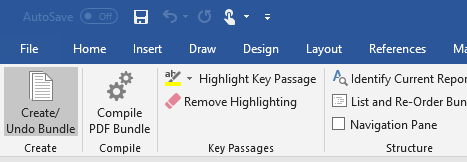
On the Bundle-Maker ribbon, click the 'Create/Undo Bundle' button to launch the Bundle-Maker:
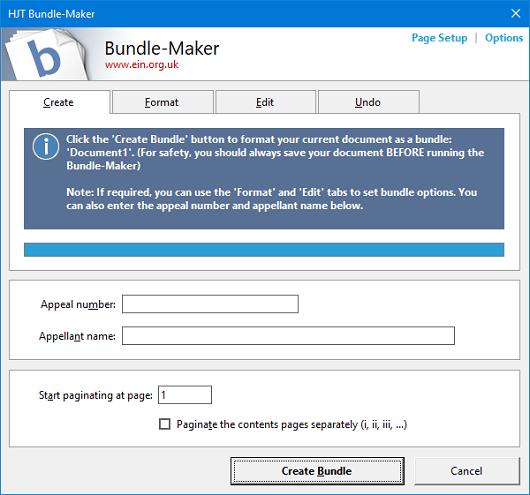
The Bundle-Maker dialog is displayed and, as you can see below, you have various formatting and editing options available, if needed. You can also enter an appellant name and appeal number, and you can specify what page to start paginating on.
By default, pagination will start at page 1, but if, for example, you want to add a bundle onto the end of another bundle, you can change the pagination start.
You can also tick the checkbox to tell the Bundle-Maker to 'Paginate the contents pages separately' in Roman numerals (i, ii, iii, etc.), while numbering the actual items in your bundle from page 1. An advantage of doing this is that you can then edit and type on the contents pages without worrying about upsetting the pagination in a bundle. Otherwise, you may find that adding extra text may push the contents pages onto a further page, requiring you to update the pagination of your bundle contents. You may also not wish the contents pages to be included in the pagination of your bundle items.
When ready, click the 'Create Bundle' button to create your bundle. The Bundle-Maker does the work for you, creating your bundle in seconds.
As it is running, the Bundle-Maker will give you the option of a legal style contents page via a simple 'Yes/No' answer message box (you will automatically get this style if you enter an appellant name and appeal number in the space provided on the Bundle-Maker).
That is all you have to do to create a fully paginated and indexed bundle such as in the screenshot below:
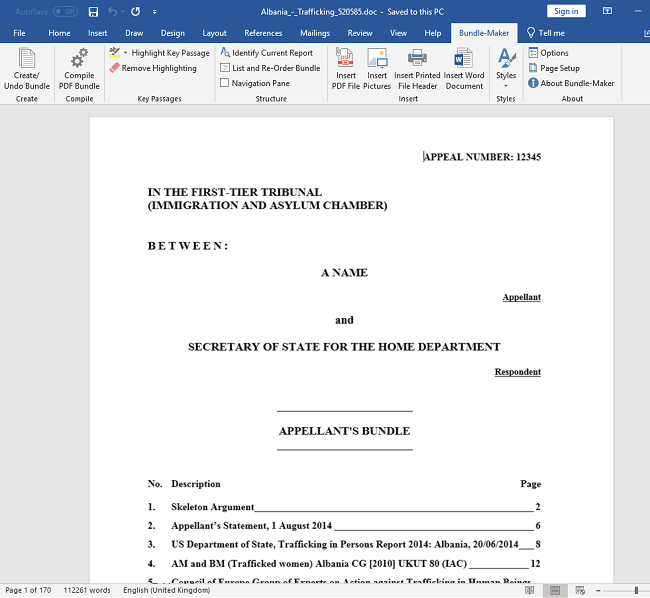
Note that if you added PDF files to a bundle, you'll need to run the PDF Bundle-Complier as a final step at this stage. The guide here explains all about adding PDF files and and compiling a PDF bundle.
A very useful point to remember is that you can easily 'undo' a bundle - see here for details on how to do this. Unlike a paper bundle, an electronic bundle can be quickly unformatted and recreated multiple times, easily allowing you to edit the materials or correct mistakes.
If you find that there is something you would like the Bundle-Maker to do that it currently cannot, please email hjt@ein.org.uk and let us know – we will endeavour to add requested features wherever possible.
Options for controlling the formatting when creating a bundle
Also available on the Bundle-Maker are 'Format' and 'Edit' tabs.
The 'Format' tab simply allows you to set various formatting options for your bundle, allowing you to control font and other settings. The default options should be fine for most users so you may find that you rarely need to use these options.

The 'Edit' tab gives you the options to edit the default text on a legal-style bundle contents page or you can browse and select your own Word document and use this as your own custom front page.

The default front page is: 'IN THE FIRST-TIER TRIBUNAL (IMMIGRATION AND ASYLUM CHAMBER)'.

You can save your own setting on both tabs as defaults, if required.
Further Options
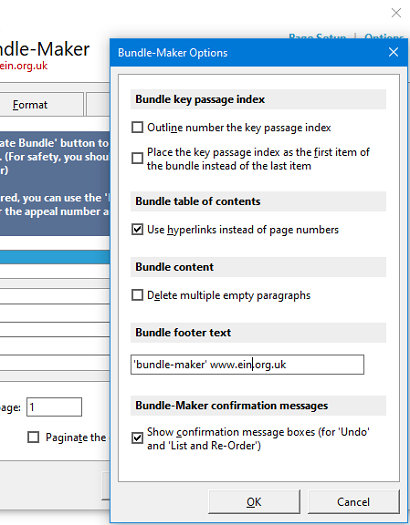
Click the 'Options' command in the top right corner of the Bundle-Maker for further options.