This guide covers switching between bundles, editing and re-ordering items within your content bundles, cloning bundles, and deleting bundles:
Switching between content bundles
Re-ordering the items in a content bundle
Deleting individual items from a content bundle
Cloning a content bundle
Deleting an entire content bundle
Switching between content bundles
You can create multiple content bundles on EIN and you can very easily switch between bundles. You can switch between your bundles using the 'Content bundles' box on the right of a page or you can use the 'My bundles' page here. The 'My bundles' page can be easily accessed under the 'User Account' menu in the top right:

To switch to a different bundle using the 'Content bundles' box, click on 'Inactive bundles' and then click the name of the bundle:
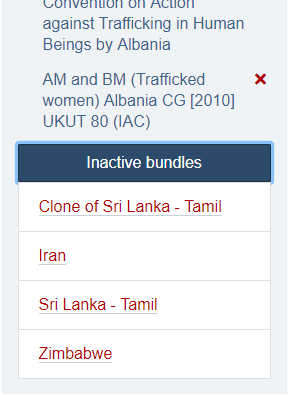
This then becomes your current active bundle - when you click to add items to a bundle, they will go to this bundle.
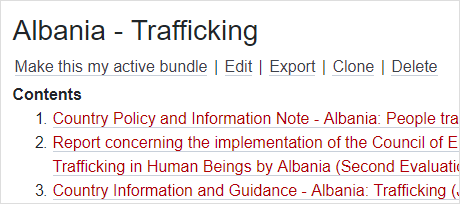
If you are using the 'My bundles' to switch between bundles, find the bundle you want to switch to and click the link to 'Make this my active bundle'.
Re-ordering the items in a content bundle
Click the toolbar EDIT ACTIVE BUNDLE button to go to the page where you can re-order the items in a bundle:
You can then drag and drop the items in your bundle. Simply put your cursor over the cross icon  and drag and drop the item to its desired location:
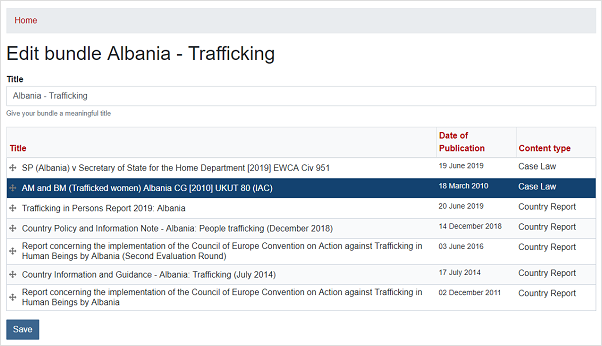
The item you are dragging will be highlighted in blue.
You can also automatically sort items by Date or Title or Content type by clicking the relevant header in the table of items. Click again to sort by ascending or descending.
Clicking Content type will order the items grouped by type, with all case law first, then country reports. If you group by type, items of the same type will be automatically sub-sorted by date, newest first.
When you have finished re-ordering the items, you have to click the 'Save' button to commit those changes.
You can also access the edit bundle function by going to the 'My bundles' page. From here, you can edit any of your bundles, not just your active bundle.
Deleting individual items from a content bundle
When you add an item to a content bundle, you will see that the 'BUNDLE ' link which appears on the left of a page changes from 'Add to my active bundle' to 'Remove from my active bundle':
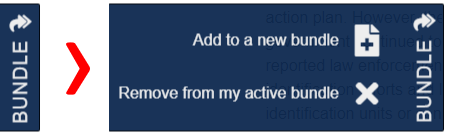
Click this to remove the item.
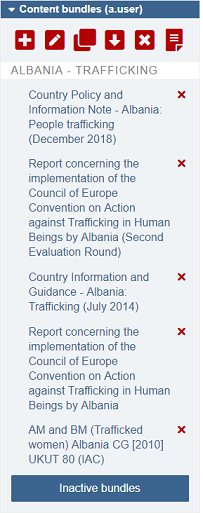
You can also click the red x icon next to the item in the 'Content bundles' box to remove an item:
Cloning a content bundle
Cloning a bundle allows you to create an exact copy of an existing bundle whilst keeping that existing bundle.
This allows you to use one of your exisitng bundles as the basis for a new bundle without losing or changing the original bundle.
To clone a bundle, click the CLONE ACTIVE BUNDLE button in the 'Content bundles' box:
You can also go to the 'My bundles' page, find the bundle you wish to clone and click the 'Clone' link for that bundle.
The clone pop-up dialog opens when you clone a bundle:
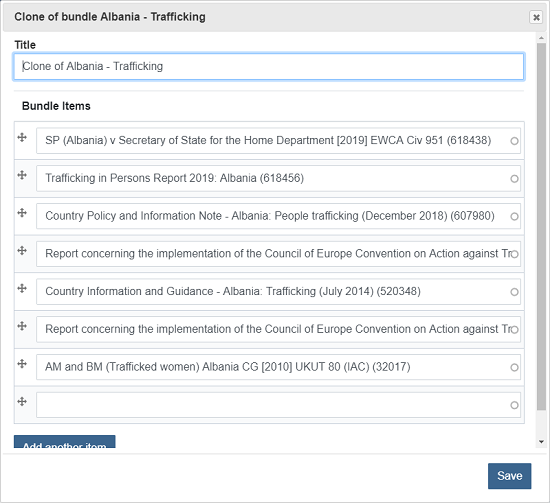
You may wish to edit the title before saving. By default, it will give the new bundle the title 'Clone of ...' and your original bundle's title. Then click 'Save' to save your cloned bundle.
Note that the new, cloned bundle will become your current active bundle when created.
Deleting an entire content bundle
To delete an entire bundle, click the toolbar DELETE ACTIVE BUNDLE button:
You will be prompted to see if you really do want to delete the bundle. Click the 'Yes, delete bundle' button to confirm (or 'Cancel' if you do not want to delete the bundle).
Note that there is no way to retrieve a content bundle if you do delete it so always make sure that you won't need a bundle again before deleting it.
You can also use the 'My bundles' page to delete bundles.